Introduction
192.168.1.1 WiFi Settings provide access to the wireless configuration options available on many home and office routers. Users can open the router administration panel through a web browser and manage important network settings, including WiFi names, passwords, security modes, and connected devices.
A properly configured wireless network helps provide a stable and secure internet connection. Whether you want to change your WiFi password, improve network security, or manage connected devices, understanding the router settings can make the process easier.
This guide explains how to access 192.168.1.1 WiFi Settings and configure your wireless network step by step.
What Are 192.168.1.1 WiFi Settings?
192.168.1.1 is a private IP address commonly used as the default gateway by several router manufacturers. It allows users to access the router’s local administration interface.
The WiFi settings section is usually available inside this dashboard. Depending on your router, it may be called Wireless Settings, WLAN Configuration, or WiFi Management.
Common options include:
- Changing the WiFi network name.
- Updating the wireless password.
- Selecting a WiFi security mode.
- Managing 2.4 GHz and 5 GHz networks.
- Enabling or disabling wireless broadcasting.
- Creating a guest network.
- Managing connected devices.
The available options depend on the router model and firmware version.
How to Open 192.168.1.1 WiFi Settings
Follow these instructions to access your router’s wireless configuration page.
Step 1: Connect Your Device
Connect your smartphone, laptop, or computer to your router’s WiFi network. You can also connect using an Ethernet cable.
Step 2: Open Your Browser
Launch Google Chrome, Firefox, Microsoft Edge, Safari, or another supported browser.
Step 3: Enter 192.168.1.1
Type http://192.168.1.1 into the address bar and press Enter.
Step 4: Log In to the Router
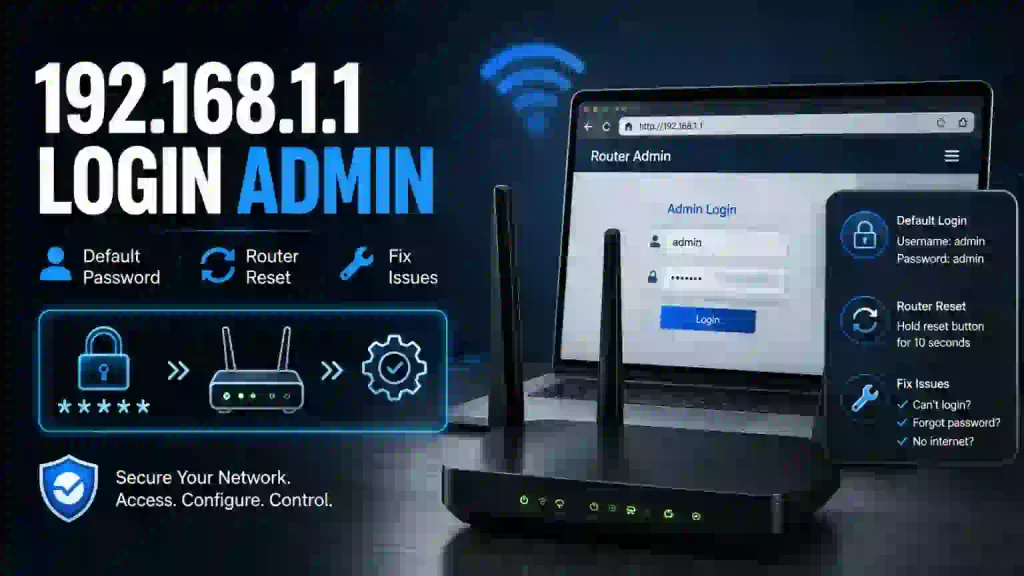
Enter the administrator username and password. These credentials may be printed on the router label or included in the manufacturer’s documentation.
Step 5: Open Wireless Settings
After logging in, find the Wireless, WLAN, or WiFi Settings section.
You can now manage the available wireless configuration options.
How to Change Your WiFi Name
The WiFi network name is also called the SSID. It is the name displayed when smartphones, laptops, and other devices search for available wireless networks.
To change your network name:
- Open the router administration panel.
- Navigate to Wireless Settings.
- Find the SSID or Network Name field.
- Remove the existing name.
- Enter your preferred WiFi name.
- Click Save or Apply.
After saving the changes, your network may temporarily disconnect. Reconnect your devices using the updated network name.
How to Change Your WiFi Password
A strong WiFi password helps prevent unauthorized users from connecting to your network.
Follow these steps:
- Log in to 192.168.1.1.
- Open Wireless Security or WiFi Security.
- Find the Password or Security Key field.
- Enter a new password.
- Select WPA2-Personal or WPA3-Personal if supported.
- Save the settings.
Use a password that is difficult to guess and avoid sharing it publicly.
Understanding 2.4 GHz and 5 GHz WiFi
Many modern routers support two wireless frequency bands: 2.4 GHz and 5 GHz.
2.4 GHz WiFi
The 2.4 GHz band generally provides better coverage and can pass through walls more effectively. However, it may experience more interference because many household devices use the same frequency.
5 GHz WiFi
The 5 GHz band can provide higher wireless speeds under suitable conditions. However, its coverage is generally shorter than 2.4 GHz, especially through walls and other obstacles.
Some newer routers also support 6 GHz WiFi through compatible WiFi 6E or WiFi 7 equipment.
How to Improve WiFi Performance
If your internet connection feels slow, adjusting your wireless configuration and router placement may help.
Consider these practical suggestions:
- Place your router in a central location.
- Keep it away from thick walls and metal objects.
- Use an appropriate WiFi channel.
- Update router firmware when supported updates are available.
- Disconnect devices that are no longer needed.
- Use the 5 GHz band for compatible nearby devices.
- Avoid placing the router near sources of wireless interference.
Internet speed also depends on your service provider, subscription plan, and network conditions.
How to Check Connected Devices
The router administration panel often includes a connected devices section.
To review connected devices:
- Log in to the router.
- Open Connected Devices, Client List, or DHCP Client List.
- Review the displayed device names and IP addresses.
- Identify unfamiliar devices.
- Use supported access-control options if you need to restrict a device.
Device names may not always be recognizable, so check the MAC address and connection details before blocking anything.
Common WiFi Settings Problems
WiFi Name Is Not Updating
Reconnect to the network or restart the router after saving the new SSID.
New Password Is Not Working
Make sure you enter the correct password and reconnect using the updated security key.
Router Settings Page Is Unavailable
Verify the router’s actual gateway address and confirm that your device is connected to its network.
Weak WiFi Signal
Move the router to a better location and reduce physical obstructions.
Conclusion
192.168.1.1 WiFi Settings make it easier to manage important wireless network options through a router administration panel. Users can change their WiFi names and passwords, configure security settings, manage frequency bands, and review connected devices.
By understanding these options and applying basic network security practices, you can maintain a more reliable and secure wireless connection at home or in the office.
