Introduction
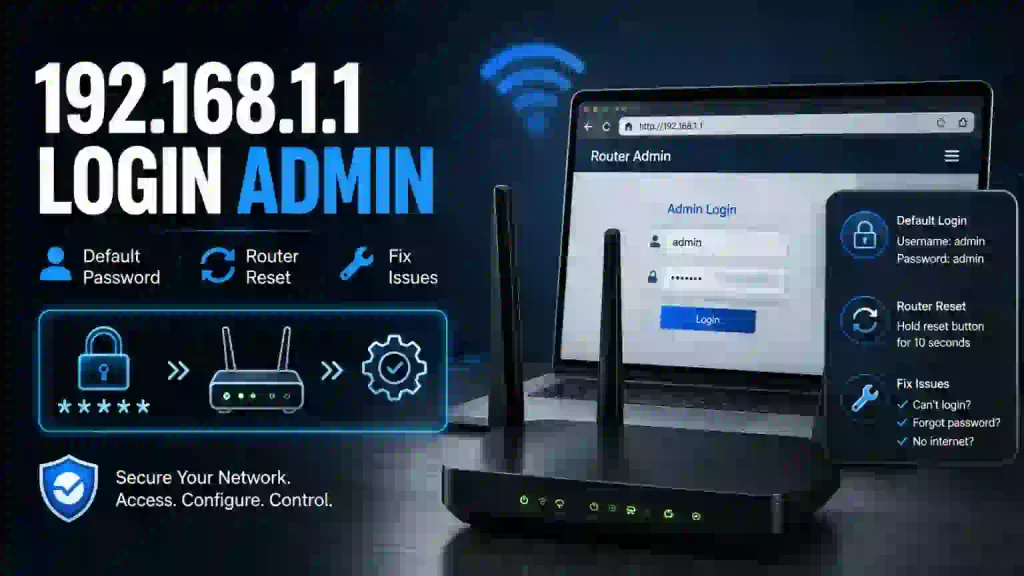
192.168.1.1 is a commonly used private IP address that allows users to access their router administration panel. Through this address, users can manage network settings, change WiFi passwords, configure security options, and monitor connected devices.
One of the most common reasons people visit the 192.168.1.1 login page is to find or change their router password. However, many users become confused because routers usually have two different passwords: the administrator password and the WiFi password.
Understanding the difference between these passwords can help you manage your network more effectively. This guide explains how to find, change, and reset your router passwords.
What Is the 192.168.1.1 Password?
The 192.168.1.1 password generally refers to the administrator password required to access the router management dashboard.
When you enter http://192.168.1.1 in your browser, the router may display a login screen asking for a username and password.
These credentials protect the administration panel from unauthorized access. Without the correct administrator credentials, users cannot normally change important router configurations.
The default password depends on the router manufacturer, model, and configuration.
Common Default Router Passwords
Some routers use factory-default credentials when they are first installed.
Here are a few common examples:
| Username | Password |
|---|---|
| admin | admin |
| admin | 1234 |
| admin | password |
| user | user |
| admin | Leave blank |
These are general examples and are not guaranteed to work on your device.
Many newer routers use unique administrator passwords printed on the device label.
How to Find Your Router Password
If you do not know your router login password, there are several places where you can check.
Check the Router Label
Look at the back, bottom, or side of your router. Manufacturers often print the default login information on a sticker.
Read the User Manual
The router’s official manual may contain information about default administrator credentials and the login procedure.
Check the Manufacturer’s Website
Some manufacturers provide model-specific support documents explaining how to access the administration panel.
Contact Your Internet Provider
If your router was supplied by your internet service provider, its support team may help you identify the correct login information.
How to Change the 192.168.1.1 Admin Password
Changing the administrator password helps protect your router configuration.
Follow these steps:
- Connect your device to the router.
- Open a browser.
- Enter http://192.168.1.1.
- Enter your current administrator credentials.
- Open Administration, System Tools, or Security.
- Find the Change Password option.
- Enter your new password.
- Confirm the password.
- Save the changes.
Some routers may automatically log you out after the administrator password is updated. Use the new credentials when logging in again.
How to Change Your WiFi Password
Your WiFi password is different from the administrator password. It controls which devices can connect to your wireless network.
To update it:
- Open the router administration page.
- Log in using administrator credentials.
- Navigate to Wireless Settings.
- Open Wireless Security.
- Find the WiFi Password or Security Key field.
- Enter a new password.
- Select WPA2 or WPA3 if available.
- Save the settings.
Reconnect your smartphones, computers, and other wireless devices using the new password.
What Makes a Strong Router Password?
A strong password makes unauthorized access more difficult.
Consider these recommendations:
- Use at least 12 characters.
- Combine uppercase and lowercase letters.
- Include numbers and special characters.
- Avoid using your name or birthday.
- Do not reuse passwords from other accounts.
- Keep administrator and WiFi passwords different.
A password manager can also help you store complex credentials securely.
How to Reset a Forgotten Router Password
If you forget your administrator password, your router may provide a password recovery option.
If recovery is unavailable, a factory reset may be necessary.
The general procedure is:
- Locate the physical Reset button on your router.
- Read the manufacturer’s reset instructions.
- Follow the recommended reset procedure.
- Wait for the router to restart.
- Use the default credentials provided for your model.
- Configure your network again.
A factory reset usually removes custom settings, including WiFi names, passwords, and internet configurations.
Do not reset your router unless you are prepared to set it up again.
Difference Between Admin Password and WiFi Password
These passwords have separate purposes.
| Feature | Admin Password | WiFi Password |
|---|---|---|
| Main purpose | Access router settings | Connect devices to WiFi |
| Login location | Router administration page | Device WiFi connection |
| Controls | Router configuration | Wireless network access |
| Recommended security | Strong unique password | Strong unique password |
Keeping both passwords secure helps protect your network.
Common Password Problems and Solutions
Incorrect Username or Password
Check the router label and verify that you are using the administrator credentials rather than the WiFi password.
Password Not Working After a Change
Make sure you are using the latest saved credentials. Check whether the router requires a new login session.
Forgot the New Password
Use the manufacturer’s recovery instructions or consider a factory reset if no recovery option exists.
Unable to Open the Login Page
Confirm that your device is connected to the router and that 192.168.1.1 is the correct gateway.
Conclusion
The 192.168.1.1 password protects access to your router’s administration dashboard. Users can find default credentials through the router label, change administrator passwords through system settings, and update WiFi passwords through wireless configuration.
For better network protection, always use strong and unique passwords. If you forget your administrator password, check the manufacturer’s recovery options before performing a factory reset.
